ForgeGUI Code coin pickup
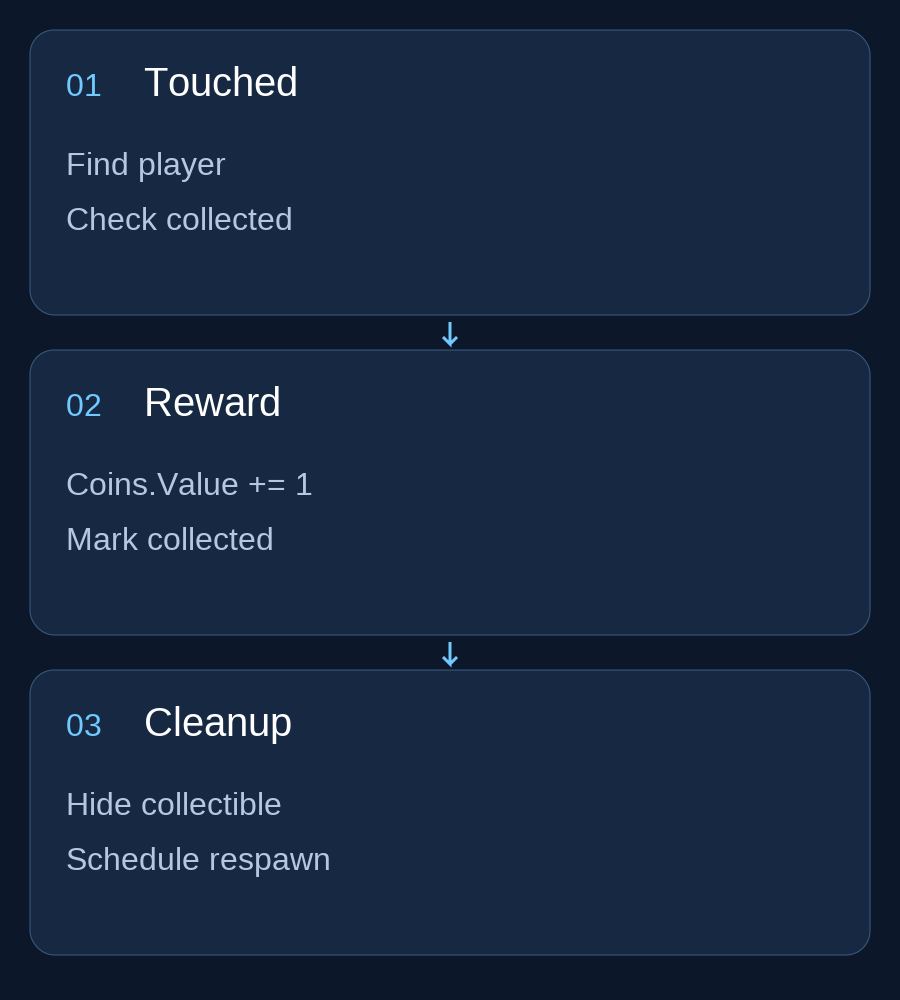
Pair an icon with a server-awarded collectible through ForgeGUI Code. Include a cooldown rule so repeated contact does not award the same pickup twice.
score.Value += 10
coin.CanTouch = false
ForgeGUI Code connects artwork with game logic
Use ForgeGUI Code to discuss game assets and Luau together. Connect Claude or Codex with ForgeGUI and your open Roblox Studio place.
Authorize your Forge GUI account in Codex to create the artwork your game needs.
Connect the open Studio place to Codex, using the same computer for both.
Request coin artwork and ForgeGUI scripts for pickup logic, then check these Roblox scripts in your test place.
ForgeGUI Code interactions to explore
Try these ForgeGUI Code starting points for AI Roblox scripting. Each excerpt focuses on a small change you can observe during a playtest.
Pair an icon with a server-awarded collectible through ForgeGUI Code. Include a cooldown rule so repeated contact does not award the same pickup twice.
score.Value += 10
coin.CanTouch = false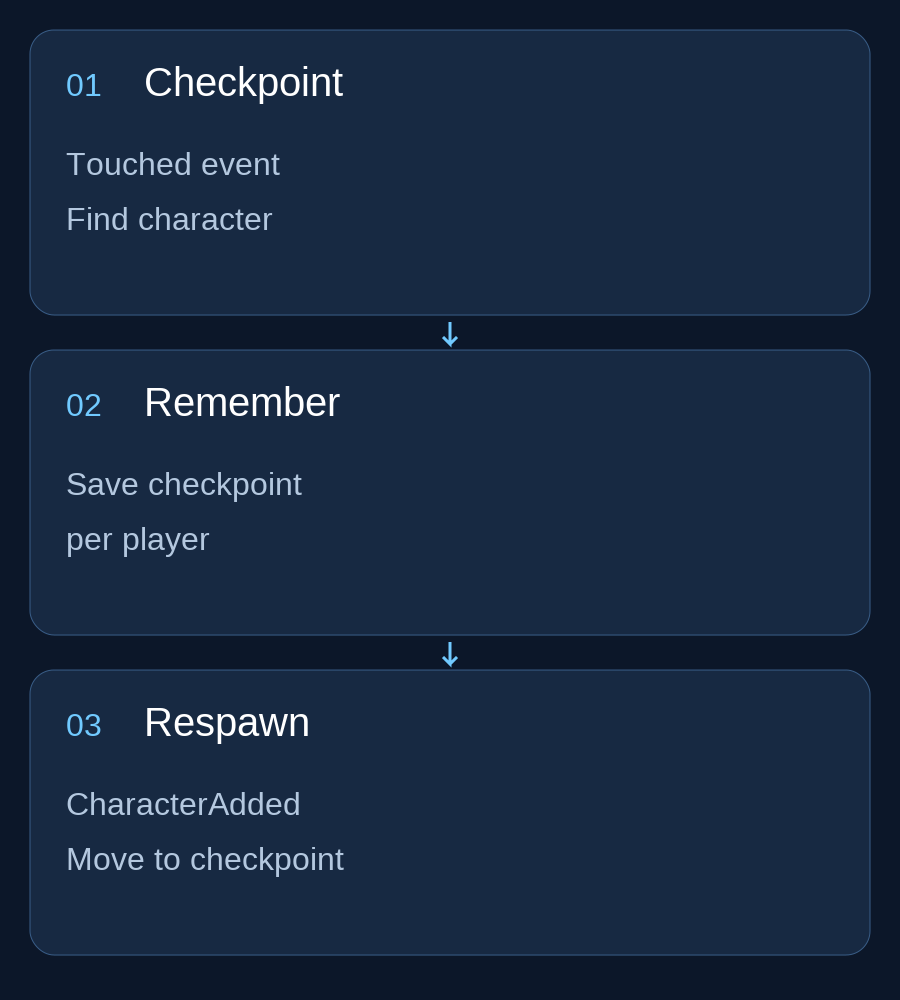
Name your SpawnLocation in the ForgeGUI Code brief. Have the assistant set it as the player's respawn point after they reach the checkpoint flag.
player.RespawnLocation = checkpoint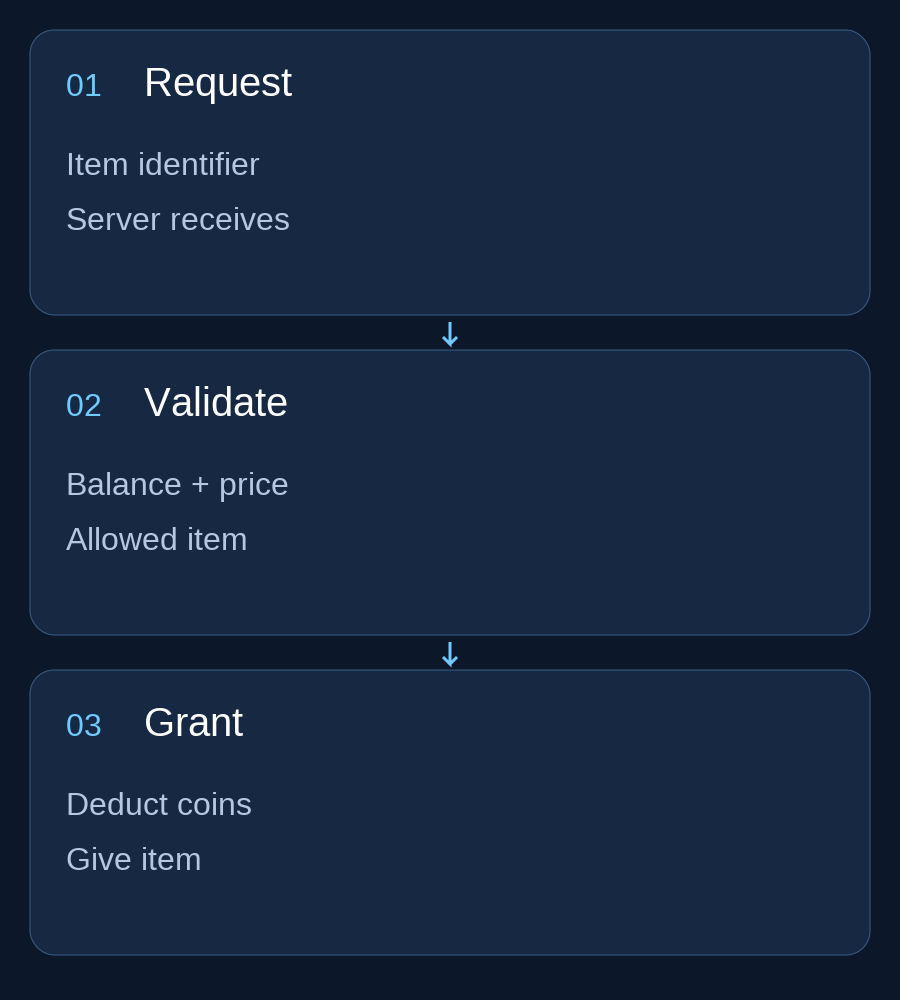
Ask ForgeGUI Code for a shop toggle: tap the bag to open the panel, then tap again to close it.
button.Activated:Connect(function()
  shop.Visible = not shop.Visible
end)
ForgeGUI Code creative and scripting tools
Explore how ForgeGUI Code supports each part of a small Studio task.
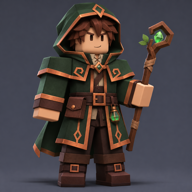
Brief ForgeGUI Code on a coin with a readable silhouette. Use distinct names for the artwork and collectible object so the Roblox scripts target the intended part.
Open quick startPut ForgeGUI Code into a testable workflow
Tie art choices to testable rules. ForgeGUI Code grounds AI Roblox scripting in what players see when interacting with the feature.
Name and describe the coin once for AI Roblox scripting, then use that same color, purpose, and object when requesting the corresponding Roblox scripts.
Connect Claude Code or Codex for AI Roblox scripting and ask it to inspect Explorer names before proposing edits to your current Studio place.
Use ForgeGUI Code to explain an event or property, then test a small adjustment yourself, such as changing a ten-point pickup into five points.
Read the ForgeGUI scripts in ForgeGUI Code, apply a focused edit, and press Play. Check the outcome before combining that change with another feature.
Connect and playtest with ForgeGUI Code
Follow a collectible through ForgeGUI Code, from its first design to Play mode. Use a test place to review each adjustment.
Select your client and authorize ForgeGUI MCP for ForgeGUI scripts. In Studio Assistant, select Manage MCP Servers and enable the Studio server for that local client.
Specify the trigger, target, and outcome. Request an explanation with the ForgeGUI scripts so you understand the required objects and where each part of the code belongs.
Touch the collectible twice and watch the score after each attempt. Give ForgeGUI Code the smallest observed difference between the result and your intended rule.
Plan your ForgeGUI Code test
Start AI Roblox scripting with an action, expected result, and example that should do nothing. Give ForgeGUI Code clear boundaries for the implementation.
Match object names in the ForgeGUI scripts to the open place. Duplicate Coin names can make a simple event difficult to locate and debug.
Ask ForgeGUI Code to award points on the server. Local animation and button feedback can stay on the client when they only concern one player's view.
Decide whether the coin vanishes, respawns, or remains for other players. The Roblox scripts need an explicit rule for later contact as well as the first pickup.
Supply the first Output error and reproduction steps. Request a focused correction to the ForgeGUI scripts.
Choose a ForgeGUI Code exercise
A small AI Roblox scripting task offers something concrete to learn from. Test one button before building a shop around its behavior.
Begin with a part that changes color. Have ForgeGUI Code explain the lines involved, then test another interaction once that first behavior is clear.
Build and test one inventory slot with ForgeGUI Code and its Roblox scripts before extending the system.
Make one panel clickable and ask ForgeGUI Code how Activated supports mouse and touch. Use the answer to test the same interaction with both inputs.
Give teammates the expected result, reproduction steps, and affected ForgeGUI scripts so they can test the same issue.
Creator Workflows
ForgeGUI Roblox workflows help creators compare thumbnail directions, sharpen prompt ideas, and maintain steady production across launches, updates, events, and concepts.
Needed a thumbnail, then stayed to try menu designs too. Unexpectedly fun to explore lol
My first game cover is finished! Pretty happy with this one :)
My menu idea was vague at first. Comparing several visual drafts helped me see which direction I wanted to build for the game.
Fantasy menus are my main reason for using it. Some drafts needed redoing, but I've saved several promising ones.
Set up your assistant in ForgeGUI Code, open a test place, and use the coin pickup prompt to explore one small, reviewable interaction.
Set up ForgeGUI CodeCheck Forge GUI credit allowances for artwork created alongside your ForgeGUI scripts.
Billed $95.88 yearly
Save US$107 compared to paying monthly
1,000 credits/Month
up to 100 images/Month
Billed $239.88 yearly
Save US$120 compared to paying monthly
3,000 credits/Month
up to 300 images/Month
$5.99 / creator / month
Billed $719.88 yearly
Save US$839 compared to paying monthly
10,000 credits/Month
up to 1,000 images/Month
Any Questions? Email: support@forgegui.dev
Pay safely and securely with








 More
Before your first ForgeGUI Code session
Check AI Roblox scripting setup, local Studio connections, and ways to verify Roblox scripts in a test place.
Try a collectible, checkpoint, or shop toggle. Playtest these Roblox scripts while the assistant explains the relevant ForgeGUI scripts, connecting code to an observable result.
ForgeGUI MCP connects your assistant to asset generation. Describe the image and its game role. Roblox Studio MCP handles local place inspection and Roblox scripts; each connection supports a different task.
Choose Claude in ForgeGUI Code. For local place access, follow the Claude Code setup instructions and connect Studio to that client on the same computer.
Pick Codex in the ForgeGUI Code quick start, authorize your account, and begin a new conversation. Connect Studio, then ask Codex to identify the open test place.
Describe a simple rule to start AI Roblox scripting. Ask ForgeGUI Code which event runs, what changes, and how to undo it. Adjust a value and watch Play mode.
Server rewards and local interface actions need different contexts. Ask which script type, Explorer parent, and objects your ForgeGUI scripts require. Review those dependencies before placing code.
Share the relevant function, first Output error, expected result, and any recently renamed objects. Ask for a focused correction to your ForgeGUI scripts, then repeat the steps that caused the original issue to verify the proposed change.
Read examples or copy prompts on mobile. Working with an open place requires the computer running Roblox Studio and the supported local assistant client, so continue there when you need the connection and playtest tools.
Check the open Studio place and its connected client. Begin a fresh assistant conversation and request the place identity again. Confirm the result before applying Roblox scripts, so changes target the project you intended to edit.
Artwork requests made through ForgeGUI MCP use the credits in your Forge GUI account. Review current plans in Pricing. Claude or Codex access is governed separately by the assistant account you connect for the conversation.
Run Play in a copy of the place. Trigger the action repeatedly, reset the character, and test again. If rewards are shared, inspect a second player's view before deciding the change is ready for your live experience.
Playtesting and publishing are separate steps. Review your Roblox scripts and the observed behavior, then publish through Studio when you decide the changes are ready.