Give your ForgeGUI icon room
Put the boss or rare collectible at the center of your ForgeGUI icon.
ForgeGUI Icon Studio
Turn a mascot, collectible, or character into a ForgeGUI Roblox game icon. Start your ForgeGUI icon with words or references.
ForgeGUI icon ideas and revisions
See the dragon change color between two results. Reuse a shown prompt or develop your own ForgeGUI icon direction.
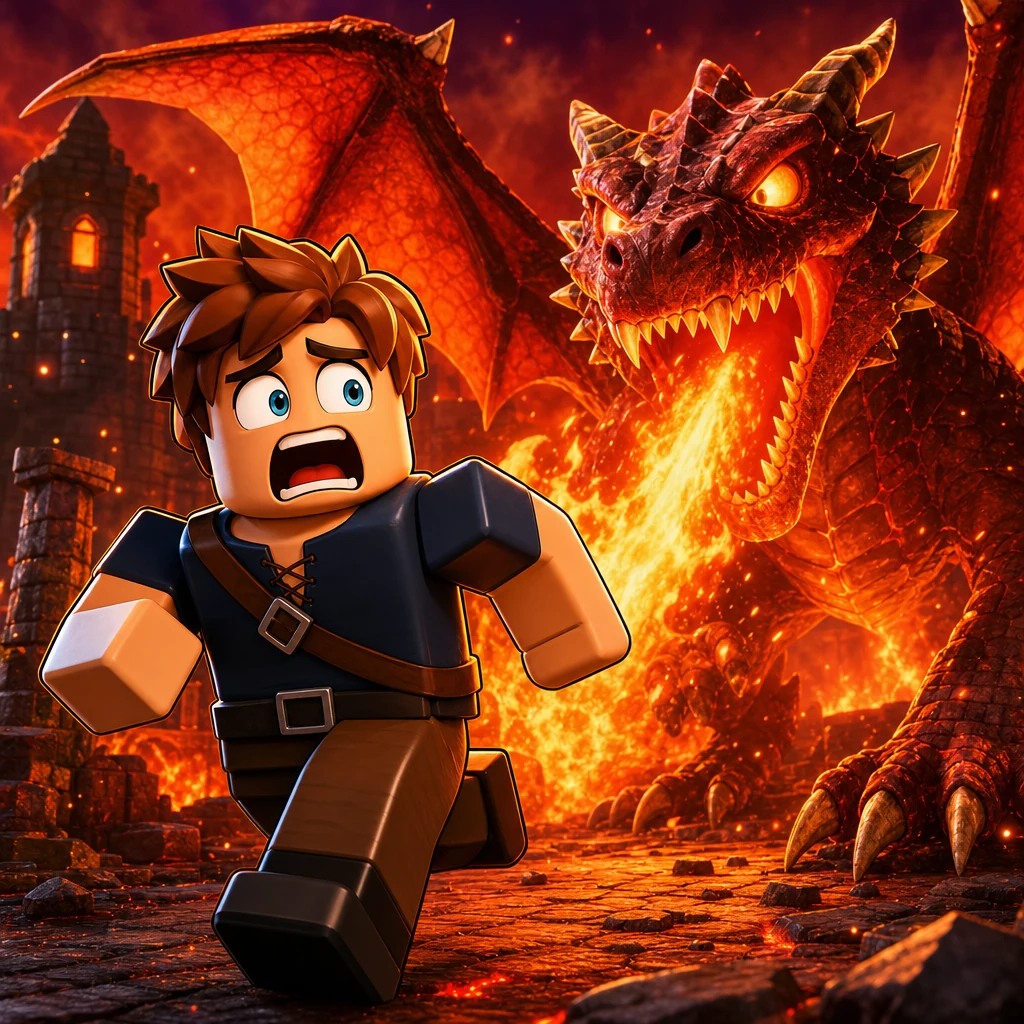
Blocky adventurer in front of a fire dragon, expressive close-up face and vivid orange dragon behind, square Roblox game icon.
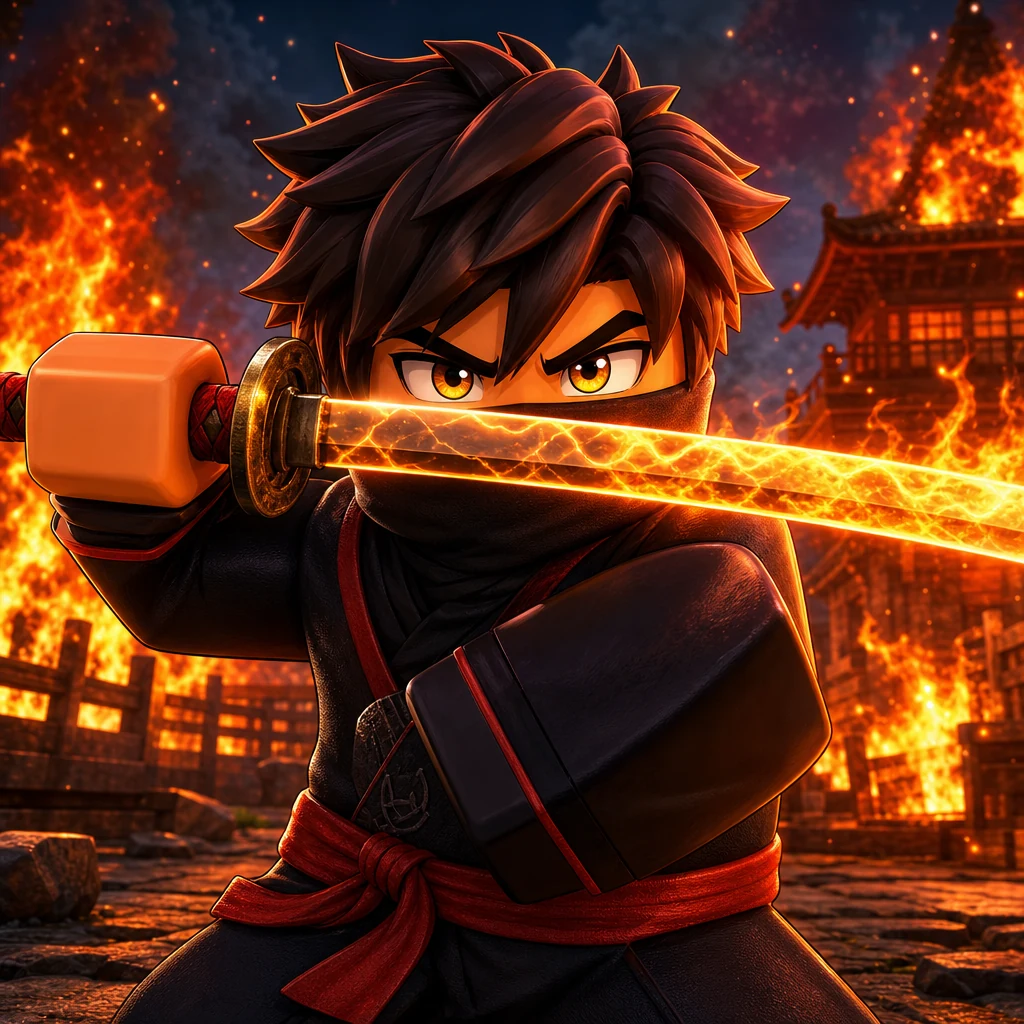
A masked ninja raises a glowing katana. Frame the amber eyes between the blade and the flames.
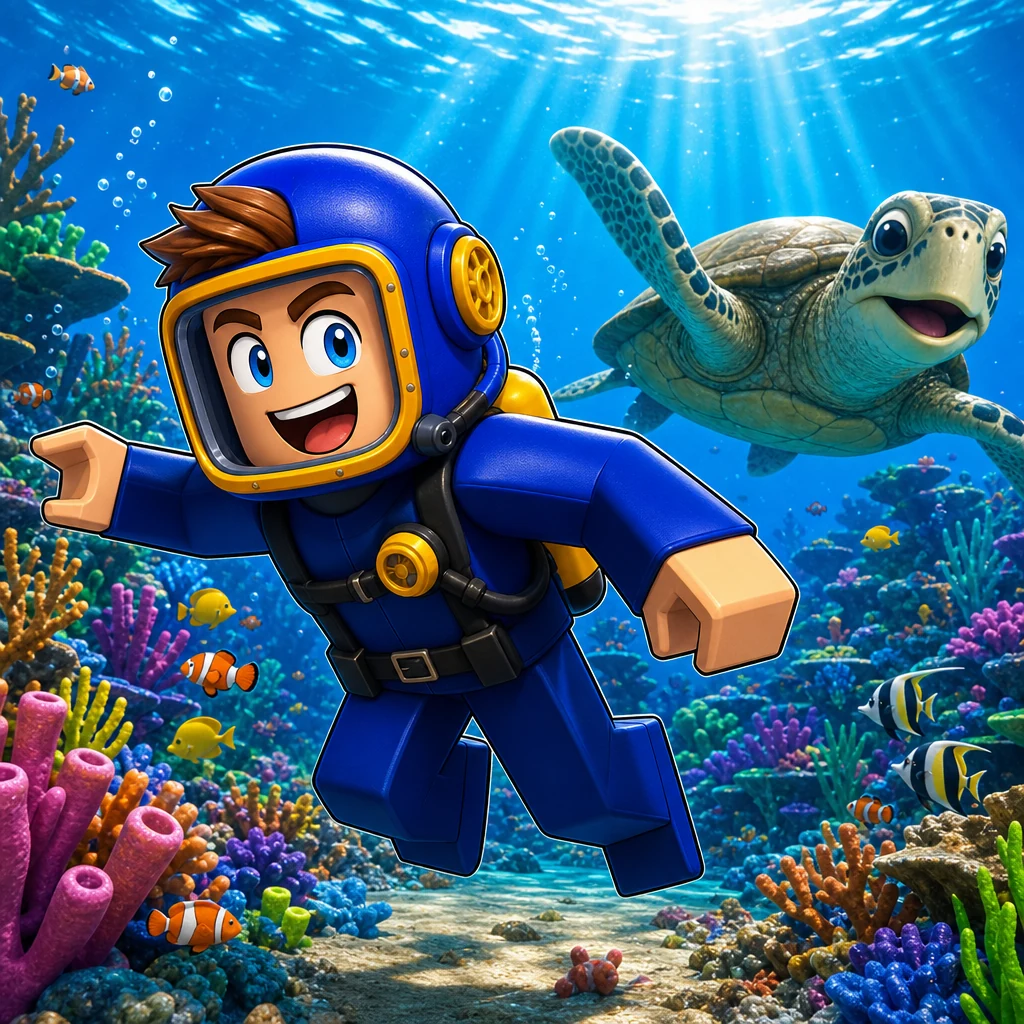
Cheerful diver, cobalt helmet, sunlit reef.
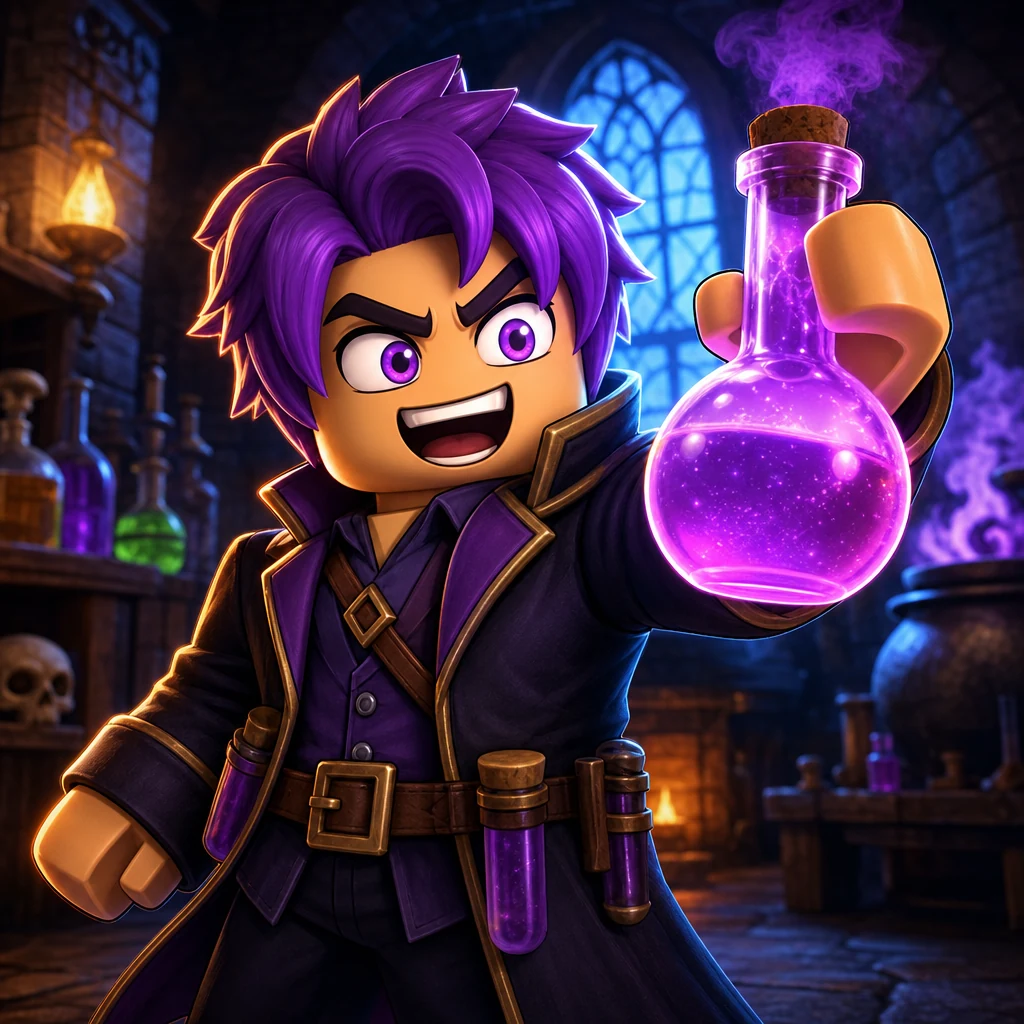
Purple-haired alchemist holding one glowing potion.
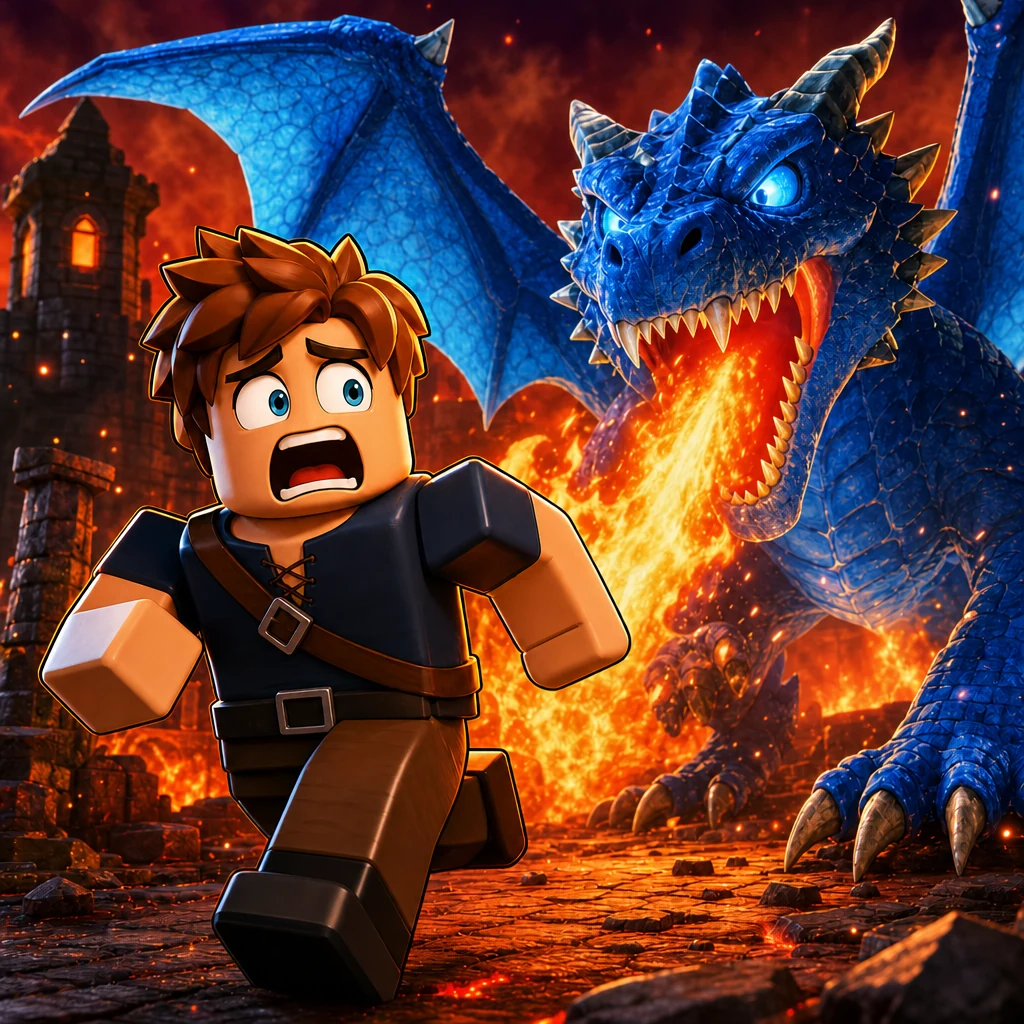
Change only the dragon to blue. Keep the hero, composition, background and lighting unchanged.
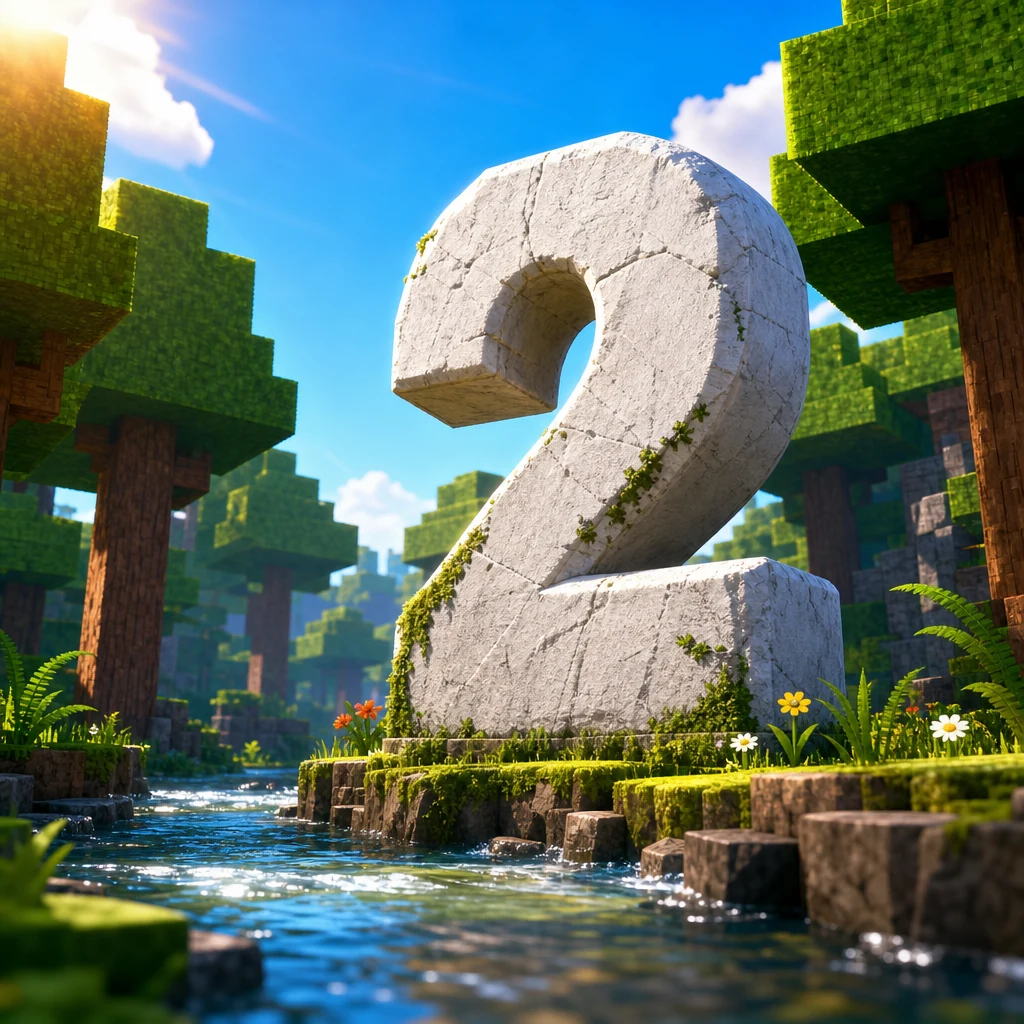
A white stone number two beside a stream, framed by blocky trees in afternoon sunlight.
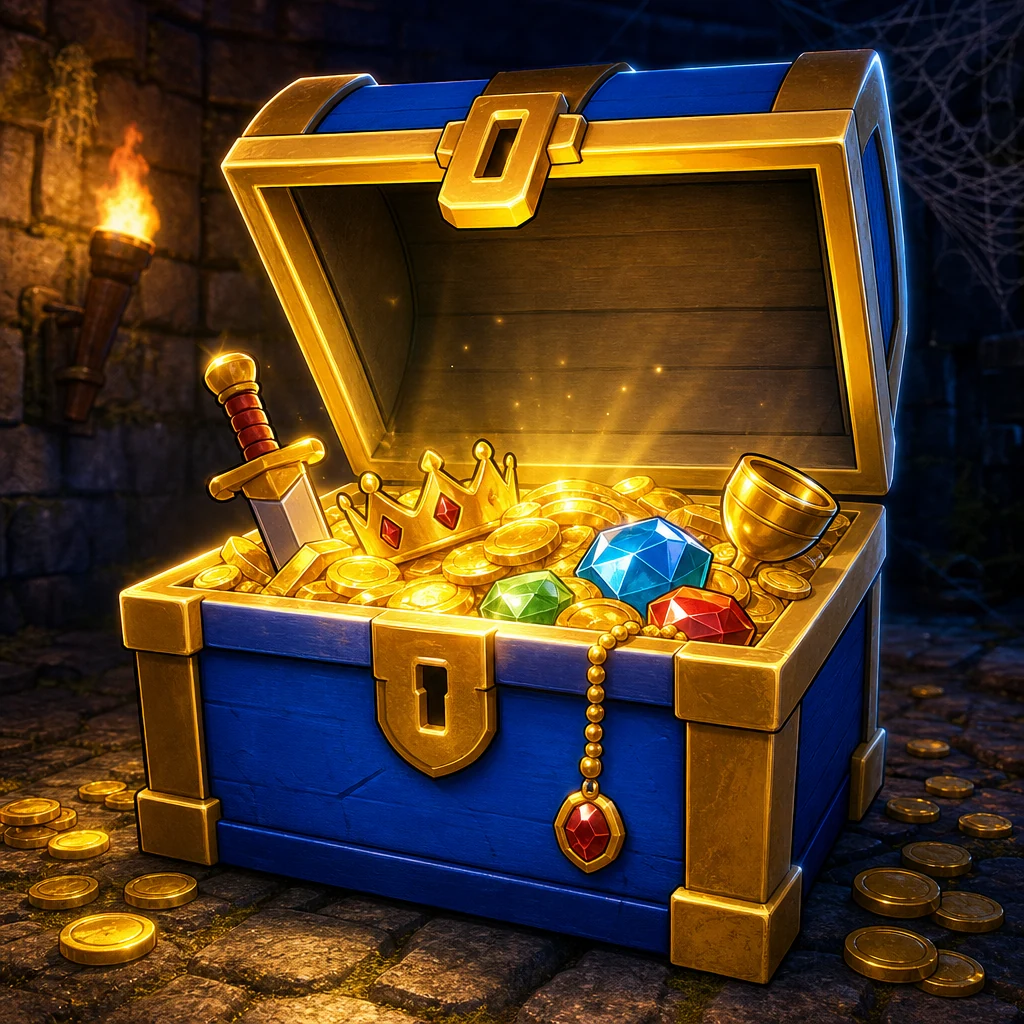
Open blue treasure chest, gold clasp, dark corners.
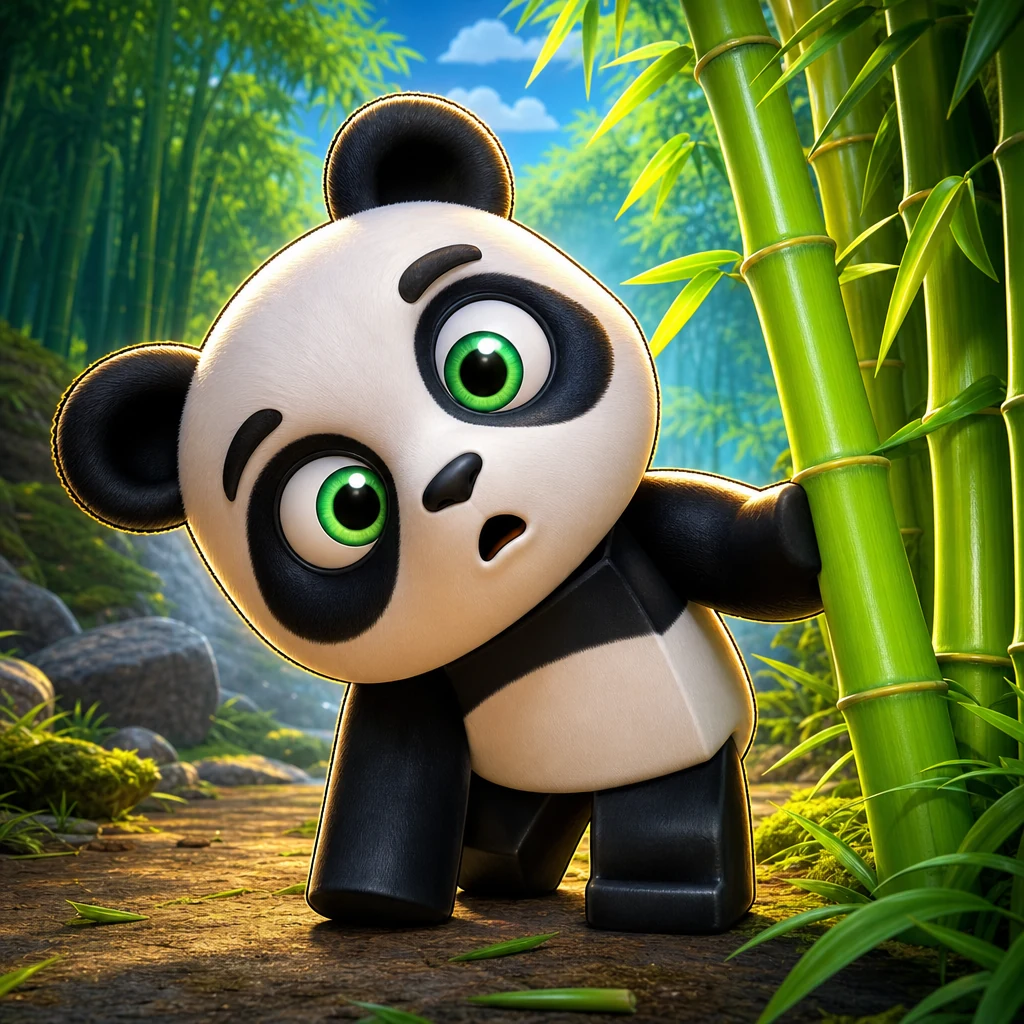
A curious panda tilts its head beside lime-green bamboo, with oversized ears and bright emerald eyes.
Shape your ForgeGUI icon
Brief your ForgeGUI Roblox game icon, guide it with references, then review it beside your ForgeGUI AI game assets.
Make your ForgeGUI Roblox game icon recognizable through its face or defining item, with breathing room around it.
Build ForgeGUI icon recognition
Build your ForgeGUI Roblox game icon around a memorable cue. Match the colors of your ForgeGUI AI game assets.
Put the boss or rare collectible at the center of your ForgeGUI icon.
Keep the face and silhouette in your ForgeGUI Roblox game icon readable on mobile before adding text.
Repeat familiar clothing or colors across your ForgeGUI AI game assets.
Try another ForgeGUI Roblox game icon crop, then compare which version communicates the subject with less effort.
Your ForgeGUI icon workflow
Choose one action and defining feature for your ForgeGUI Roblox game icon. Keep it consistent with your ForgeGUI AI game assets.
Roblox and Icons are ready. Add your mascot reference to guide the first ForgeGUI icon result.
Give your ForgeGUI icon a concrete scene: “close-up panda protecting a gold key against lime green.”
Review it alongside existing ForgeGUI AI game assets, request a focused change, and download.
ForgeGUI icon planning
Begin with the detail players should remember. Use this ForgeGUI icon checklist to judge your idea in a small square.
Make the hatchling central to your ForgeGUI Roblox game icon. Let other ForgeGUI AI game assets explain shops and inventories.
View your ForgeGUI icon small. Separate overlapping characters or remove scenery when their outlines become hard to distinguish.
Repeat a recognizable scarf, tool, or crown from existing ForgeGUI AI game assets to help players identify your world.
Keep both images at matching dimensions. Ask which ForgeGUI icon communicates its main detail more quickly.
ForgeGUI icon creator workflows
Plan your ForgeGUI Roblox game icon around an update. Coordinate it with your other ForgeGUI AI game assets.
Introduce your game's first collectible with a ForgeGUI Roblox game icon.
Review ForgeGUI AI game assets together before selecting directions.
Spotlight a seasonal boss across your ForgeGUI AI game assets.
Put your familiar mascot in the foreground.
Creator Workflows
ForgeGUI Roblox workflows help creators compare thumbnail directions, sharpen prompt ideas, and maintain steady production across launches, updates, events, and concepts.
This is the first thumbnail draft I've felt really excited to finish 😭 The palette took a few attempts to get right. I edited the backdrop and repositioned the title myself afterward. Starting from an image instead of an empty canvas made it much easier to decide what needed changing next.
Needed a thumbnail, then stayed to try menu designs too. Unexpectedly fun to explore lol
Lo uso para explorar opciones antes de dibujar. A veces toca repetir, pero una propuesta visual me ayuda a decidir cómo empezar.
Getting an image helps me figure out where to take the design. I still handle the details, especially lettering; more text controls would be nice. Last time I compared three moods for a thumbnail, chose a favorite, and added the words myself. Those options made the decision simpler.
My first game cover is finished! Pretty happy with this one :)
Für Entwürfe finde ich es praktisch. Nach zwei oder drei Versuchen passt meistens die Richtung.
When I'm stuck on colors, I compare different palettes here. Some drafts miss the mark, but one usually gives me a useful place to start designing.
做缩略图时先试几组配色,比盯着空白画布有思路多了哈哈,方向定了再修细节。
My menu idea was vague at first. Comparing several visual drafts helped me see which direction I wanted to build for the game.
Second attempt and the mood finally clicked for me ✨
Mi aiuta a mettere giù le idee. Rifinisco ancora tutto a mano, però partire da una base è più semplice.
サムネの下描き用です。配色を見比べて、お気に入りを探すのが楽しい😊
Fantasy menus are my main reason for using it. Some drafts needed redoing, but I've saved several promising ones.
썸네일에 어울리는 색을 찾을 때 켜요. 몇 가지 시도해 보니까 마음에 드는 분위기가 자연스럽게 잡히더라고요 ㅎㅎ
Told myself I'd try one last idea. Somehow my whole evening disappeared again haha
Explore ForgeGUI icon credits
Review your balance before starting a ForgeGUI icon, and keep useful prompts for future updates.
Open Rewards to claim available credits for your next ForgeGUI icon idea.
Referral eligibility and qualifying purchases appear in Rewards. Apply earned credits to ForgeGUI AI game assets.
Find a billing period and credit allowance that fit your plans for a ForgeGUI icon or a broader set of artwork.
Billed $95.88 yearly
Save US$107 compared to paying monthly
1,000 credits/Month
up to 100 images/Month
Billed $239.88 yearly
Save US$120 compared to paying monthly
3,000 credits/Month
up to 300 images/Month
$5.99 / creator / month
Billed $719.88 yearly
Save US$839 compared to paying monthly
10,000 credits/Month
up to 1,000 images/Month
Any Questions? Email: support@forgegui.dev
Pay safely and securely with








 More
ForgeGUI icon questions
Understand ForgeGUI icon prompts, references, edits, credits, and downloads.
Choose a clear action for your ForgeGUI Roblox game icon: “a masked ninja lifting a small flame beside his eyes.”
Upload a permitted reference and identify the clothes, palette, or facial details your ForgeGUI icon should retain.
Give the square ForgeGUI icon one recognizable face or object. Wider thumbnails have more room for a setting and supporting characters.
Explain the change and the elements to retain. The blue-dragon example keeps the adventurer, framing, environment, and light while changing the dragon's color.
Preview your ForgeGUI Roblox game icon at game-list dimensions. Tighten the crop or increase contrast if the face becomes difficult to recognize.
Start without lettering. If a title adds useful information, give it an uncluttered area and check whether the words remain readable at small sizes.
Bring a familiar color from your ForgeGUI AI game assets into the image, then compare the set and revise anything that breaks the visual connection.
Retain the recognizable mascot and adjust a seasonal detail. Snow on its crown, for example, can suggest winter without replacing the character.
Save the image, then upload it yourself through your experience's Roblox Creator Hub. Check the final crop before making it public.
The generator displays each request's credit cost. Compare the plans above when deciding how many credits you need.
No result is guaranteed. Compare your ForgeGUI Roblox game icon with existing artwork and measure how players respond.
Be specific about one adjustment. Simplify a crowded ForgeGUI icon by removing a background prop before changing its lighting or pose.
Give your ForgeGUI Roblox game icon a visual direction that connects with existing artwork.
Generate a game icon